Paste the key from your purchase email into Settings › License on the ApeX panel and press Activate. The EA checks it with our licence server within a few seconds, and the first time it passes on a real account, that account is linked to your licence automatically — there is nothing to register by hand.
Each licence covers a set number of real accounts at the same time; demo accounts are free and never use up a place. When the limit is reached, you free a place yourself from your account page on the store.
How do I activate the key?
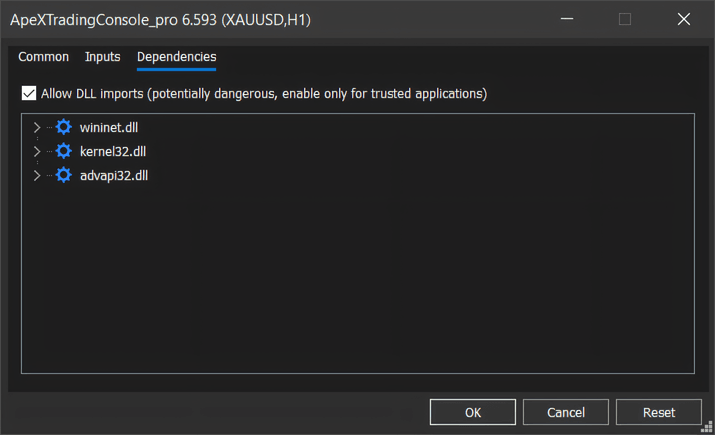
- When you drag ApeX Trading Console Pro onto a chart, open the Dependencies tab of the window that appears and tick Allow DLL imports. The Pro edition talks to the licence server through Windows (the three system files listed there), and MetaTrader refuses to start it at all without this permission.
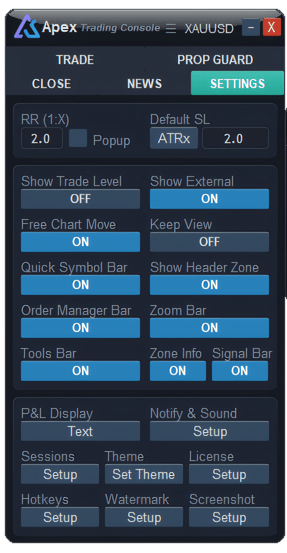
- On the panel, open the SETTINGS tab and press Setup under License. If no key has been entered yet, clicking anywhere on the locked panel opens the same window.
- Paste the key and press Activate. Dashes and spaces do not matter, and neither does upper or lower case.
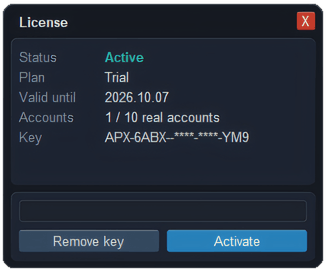
- The status changes to Checking… and then to Active in green. The window also shows your plan, the date the licence runs until, and how many real accounts are in use out of your allowance.
The key is stored once per computer. Every MetaTrader 5 terminal and every chart on that machine picks it up without typing it again; on a different computer you paste it once more.
What does the status in the License window mean?
- Active (green) — the licence is valid for this account and the panel is unlocked.
- Not active (red) — the server answered, and the answer was no. The line underneath says why; find that message in the table below.
- Checking… — a check is on its way. It normally takes a few seconds.
- Update required — this version is too old to be verified. Install the latest file from the download page.
- No connection · Allow WebRequest · Check failed (orange) — the check did not get through. These are temporary; the EA keeps retrying on its own and nothing is wrong with the licence itself.
Every licence message, and what to do
The EA shows these in English whatever language you use. They appear under the status in the License window and on the card that pops up on the chart.
| Message | What it means | What to do |
|---|---|---|
License key required - open Settings > License |
No key has been entered on this computer. | Paste the key from your email and press Activate. |
Key format: APX-XXXX-XXXX-XXXX-XXXX |
What was pasted is not shaped like a key, so it was not saved or sent. | Copy the whole key again from the email — it starts with APX and has 16 characters after that. |
Invalid license key |
The server has no licence with this key. Most often it is an older key that was replaced when a new one was sent. | Use the most recent key email. If you have lost it, send a new key from your account page. |
License in use on 10/10 accounts - remove one at shop.apexaltus.com/account |
Every real-account place on the licence is taken, so a new real account cannot be added. The numbers are your own count and allowance. | Remove an account you no longer use on your account page, then press Activate again on the new one. Keys issued outside the store say "contact support to move it" instead — email us. |
License expired on 2026-10-29 |
The paid period ended on that date. For a subscription it usually means the renewal payment did not go through, or it was cancelled. | Check the subscription from your account page. After it is renewed, press Activate to check again straight away. |
Trial ended - contact us to purchase |
A trial key that we issued by hand has run out. | Buy a plan on the store, or email us. |
License suspended - contact support |
The licence is on hold, for example after the payment was refunded or disputed with the card issuer. | Email us and we will tell you why. |
License cancelled |
The licence has been permanently cancelled. | Email us if you think this is a mistake. |
License blocked - contact supportAccess blocked for this account - contact support |
The licence, or this trading account, has been blocked. | Email us. |
Can't reach the license server |
The check could not get through — no internet, or something on the network is stopping it. | Nothing, if your connection is back — it retries by itself. A computer that was already activated keeps working on its last successful check for a limited time. |
Allow WebRequest in Options |
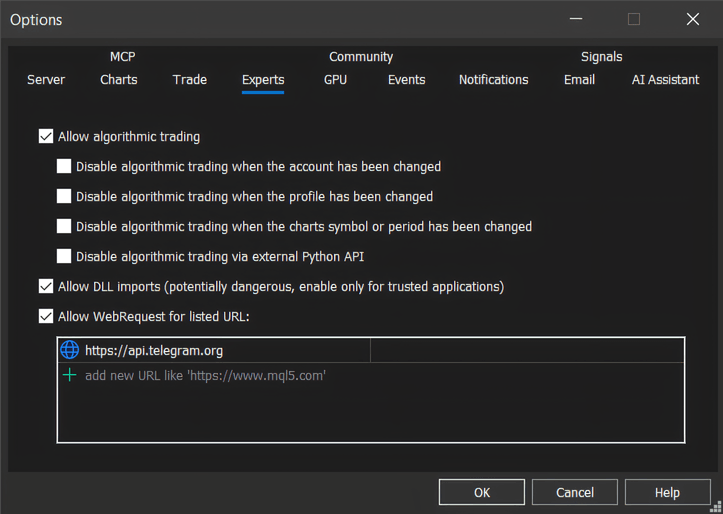
Seen mainly when MetaTrader runs under Wine or on a Mac, where the usual Windows route is not available. | Open MetaTrader's Options from the Tools menu, go to the Experts tab, switch on the WebRequest option for listed URLs and add https://pro.apexaltus.com to that list. |
License check failed - retrying |
A reply arrived but could not be verified, often because something between you and the server changed it. | It retries on its own. If it does not clear, try another network or turn off anything that inspects your traffic, then email us. |
DLL loading is not allowed |
Shown in MetaTrader's Experts log, not by ApeX: the EA was stopped before it could start. | Attach it again and tick Allow DLL imports on the Dependencies tab. |
Moving to a new account or a new computer
Accounts are linked to the licence, not to the computer. A new demo account works straight away. A new real account works straight away if a place is free; if not, sign in to your account page on the store, find the licence, and press Remove next to an account you have stopped using. Its place is free immediately, and the next check on the new account takes it. You can remove accounts yourself up to three times in any 30 days; beyond that, email us.
On a new computer, install the file, tick Allow DLL imports, and paste the same key. Nothing needs to be released from the old machine for that.
- Removing an account stops ApeX on it. If the EA is still running there, it tries to take a place again at its next check — and succeeds if one is free. Remove only accounts you have really stopped using.
- Sending a new key does not reset anything. The old key stops working at once and every computer using it needs the new one, but the linked accounts and your removal count stay exactly as they were.
Questions
Where do I enter my ApeX licence key?
On the ApeX panel in MetaTrader 5, open the SETTINGS tab and press Setup under License, paste the key and press Activate. While the panel is locked, clicking anywhere on it opens the same window.
What does "License in use on 10/10 accounts" mean?
Every real-account place on your licence is taken, so a new real account cannot be added. Sign in to your account page on the store, press Remove next to an account you no longer use, then press Activate on the new account. Demo accounts never count toward the limit.
Do demo accounts use up my licence?
No. Demo accounts appear in your list so you can see where the key is used, but only real accounts count toward the limit, and demo accounts cannot be removed because there is nothing to free.
Why won't ApeX start at all after I attach it?
Almost always because Allow DLL imports was not ticked. MetaTrader then refuses to load the EA, and the Experts tab shows the line "DLL loading is not allowed". Attach it again with that box ticked on the Dependencies tab.
Does the licence still work if my internet drops?
For a while, yes. A computer that has already been activated keeps using its last successful check for a limited period and retries by itself when the connection returns. A computer that has never been activated needs a connection for the first check.
I lost my licence key. What do I do?
Sign in to your account page on the store with the email you bought with and press Send a new key. A new key arrives by email and the old one stops working at once, so paste the new key on every computer that used the old one. Your linked accounts are kept.