 +
+

ICT auto trading with ApeX pairs the ICT Concepts indicator, which labels every shift and break in structure along with the blocks, the gaps and where liquidity was taken, with ApeX Trade Manager, which places and manages the trade. Unlike the SMC pairing, each signal can carry two possible entry zones, and you choose whether to enter at the order block, the fair value gap, or the order block when there is one and the gap when there is not. You can also demand that liquidity was swept before the shift.
What does the trade manager add to the ICT indicator?
| Step | ICT indicator on its ownApeX Indicator ICT Concepts | With ApeX Trade Manager MT5Expert Advisor for MT5 |
|---|---|---|
| The shift | MSS and BOS labels for you to read. | Each one checked against your filters as a signal. |
| Entry zone | You pick between the block and the gap. | OB, FVG, or OB with FVG as the fallback. |
| Liquidity first | You look back for the sweep. | One switch makes it a requirement. |
| Size and order | Calculated and sent by hand. | Lot from your risk; draft, pending or market. |
| The open trade | Managed by you. | Partials, break-even and trailing set in R. |
Which ICT signals does it act on?
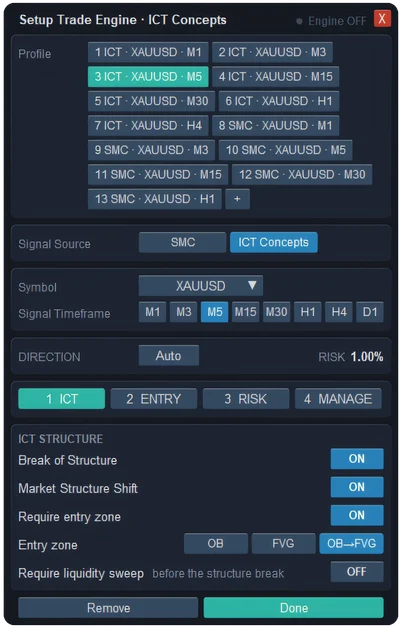
Only shifts confirmed on a closed candle. In the structure tab of the auto trade window you decide which ones count:
- Market Structure Shift — on. The first break against the trend, the classic ICT reversal entry.
- Break of Structure — on. A break in the direction of the trend; turn it off to trade reversals only.
- Require entry zone — on. A shift with no zone of the kind you chose below is passed over.
There is no swing or internal switch here: ICT Concepts tracks a single size of structure, so that SMC filter does not apply.
Order block or fair value gap?
The Entry zone row has three buttons, and only one is active at a time, so a signal never opens two trades:
- OB — order block only. The most selective; many shifts have no block and are skipped.
- FVG — fair value gap only.
- OB→FVG — the default. Use the order block when there is one, otherwise the gap. Gaps turn up far more often than blocks around a shift, so this keeps most signals tradable.
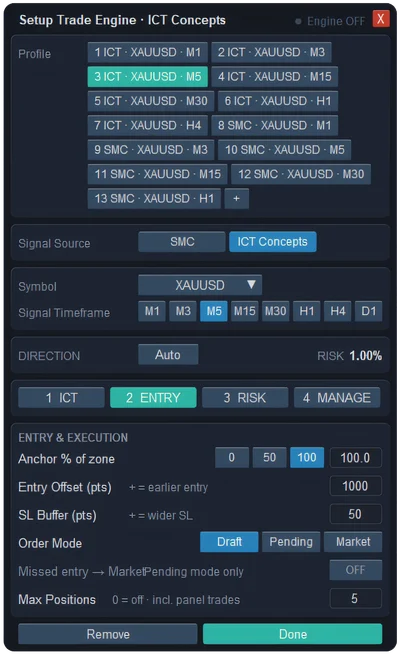
Whichever zone is used, the entry sits at the Anchor % of that zone and the stop goes past its far edge plus the SL buffer. If you trade inversion gaps, the trade manager's Auto Trade settings can read inversion FVGs instead of ordinary ones.
What does Require liquidity sweep do?
With it on, a shift only counts if buyside or sellside liquidity was taken shortly before it — the "sweep, then shift" sequence many ICT traders wait for. It is off by default because it is strict: the look-back is 100 bars, and with a narrower window most signals fail. When one fails, the Signal Skipped notification says so, so you can tell the filter apart from a quiet market.
How are risk and the open trade handled?
The other three tabs are shared with every engine, so an ICT engine follows the same rules as your manual trades:
- ENTRY — Anchor % (50 by default), entry offset, a 50-point SL buffer, and Order Mode: Draft (default, you confirm), Pending or Market.
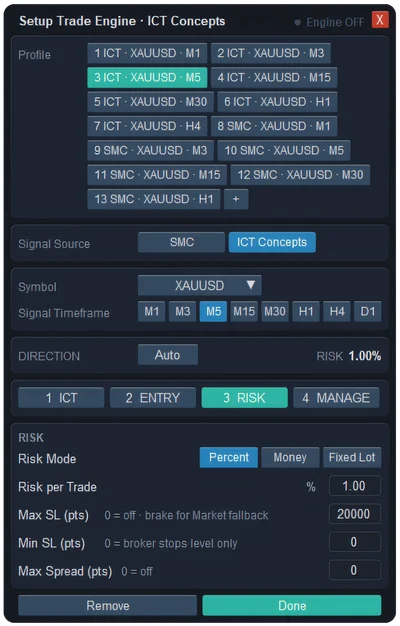
- RISK — risk per trade as a percent (1% default), a money amount or a fixed lot, with Max SL, Min SL and Max Spread as brakes.
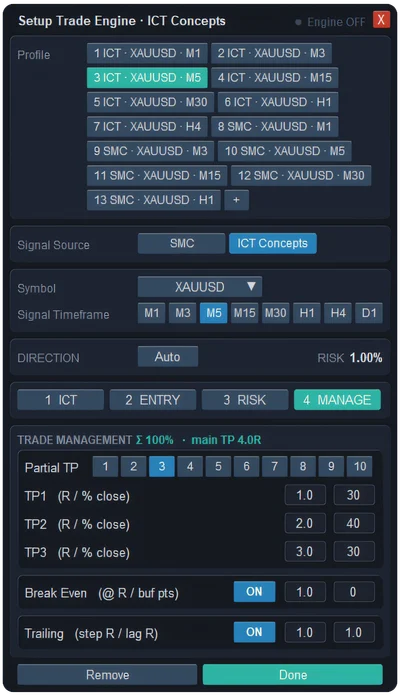
- MANAGE — 1 to 10 partial take profits in R (three by default), break-even from 1R and step trailing.
It also passes on an entry more than 8R from price, a second order at an entry that already has one waiting, and any signal once Max Positions is reached.
How do I turn it on?
- Run ApeX Indicator ICT Concepts on the chart where ApeX Trade Manager is, then Combine the two bars.
- In the Trade Signal Engine window, ☰ at the end of the ICTc row opens Setup Trade Engine; choose ICT Concepts as the Signal Source there.
- Set the symbol, the signal timeframe and the four tabs, then press Done.
- Flip the engine's switch to ON in the TRADE ENGINE list. Until you do, no order is placed.
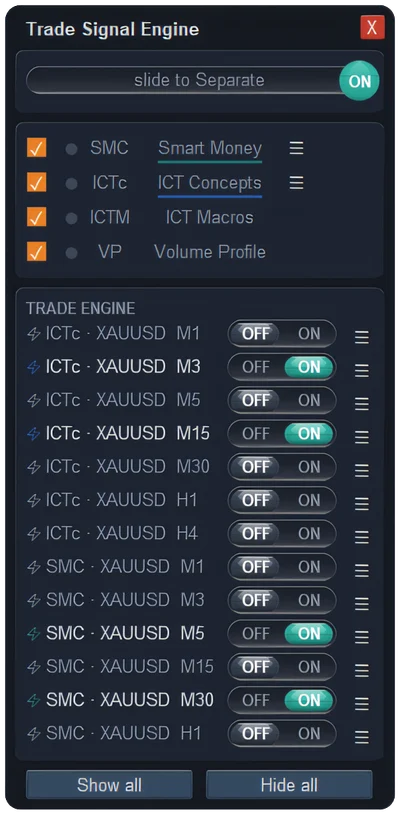
Up to 20 ICT engines can sit side by side — one per symbol and timeframe you follow, or two on the same chart with different zone settings to compare them.
Questions
How is this different from SMC auto trading?
Three things. The ICT pairing can enter at a fair value gap as well as an order block; it can require a liquidity sweep before the shift; and it has no swing or internal filter, because ICT Concepts uses one structure size. Risk, entry and trade management work the same way in both. SMC auto trading →
Why does the auto trading see different structure from my chart?
The trade manager reads its own background copy of ICT Concepts. Its structure length (5), order block look-back (10), candle-body setting and liquidity margin (6) live in the trade manager's Auto Trade settings; if you changed any of them on the chart, enter the same values there.
Does ICT Macros or the killzones trade too?
No. Auto trading reads the structure signals of ICT Concepts only. The free ICT Macros indicator and the killzone shading are for timing your own decisions.