ApeX User Manual
From your first trade to the settings most people never open. Start with four short steps, or go straight to what you need.
Nothing matches yet. Try another word, or email us and we will help.
Start here
Four short guides that take you from installing the console to closing your first trade. Nothing advanced.
Install & activate
Put the console on a chart and enter your licence key.
2Your first trade
Choose your risk, draw the trade on the chart and send it.
3Protect it
Move the stop to break-even on its own once the trade is going your way.
4Close it
Close one group or everything, by hand or at a target.
Choose a product
Each ApeX product gets its own set of guides.
ApeX Trading Console
Guides availableThe trade management panel: planning, risk, stops, exits and alerts.
ApeX Journal
Sold separately · manual coming soonA trading journal built from your MT5 history.
ApeX Indicators
Sold separately · manual coming soonSMC, ICT concepts, volume profile and ICT macros.
What do you want to do?
Jump straight to the task.
Find your way around the panel
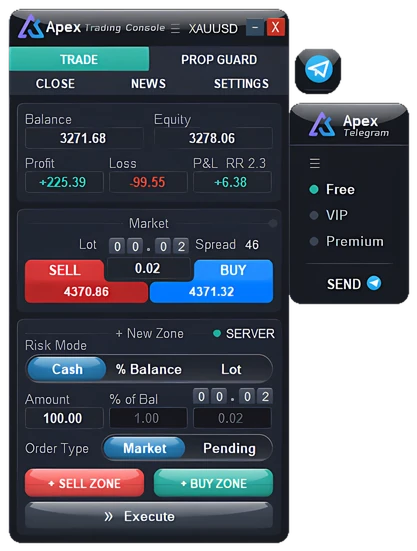
What each part of the panel is for, and where to read more about it. Tap a number to jump to its note.
- 1
Header
The symbol this chart trades. Press ☰ or the symbol to open Market Watch and switch symbols. The – button shrinks the panel. X hides the console from the chart, panels and lines alike, while it goes on managing your trades. A small ☰ button stays where the panel was, so you can bring everything back.
- 2
Tabs
Five pages. Trade is where you plan and send trades. Prop Guard keeps a prop firm account inside its limits. Close closes trades by symbol or group. News lists the events coming up. Settings holds hotkeys, screenshots, Notify & Sound and more.
- 3
Account and trade totals
Balance and equity of the account. P&L is the floating profit or loss of the open trades on this symbol. Profit and Loss show what the console’s trades on this symbol would make at their take profit, or lose at their stop loss, counting any partial levels. When both are set, RR appears next to P&L.
- 4
Market
One-click market orders. Set the lot, check the spread, then press SELL or BUY. Orders sent from here have no stop loss or take profit.
- 5
Server / Virtual
Where the next trade keeps its stop loss and take profit. SERVER (green dot) places them with your broker. VIRTUAL (orange dot) keeps them inside the console, out of the broker’s sight. Press it to change.
- 6
Risk mode and amount
How the lot is worked out: from a cash amount, from a percent of balance, or a lot you set yourself. Type the value in the box below it.
- 7
Order Type
Market enters at the current price. Pending waits for price to reach the entry you set.
- 8
+ SELL ZONE / + BUY ZONE
Draws a trade box on the chart, with an entry, stop loss and take profit you can drag into place. Press it again to remove the box.
- 9
Execute
Sends the trade in the box, with the lot the console worked out from your risk.
- 10
Telegram
The round button opens the Telegram settings. The signal bar beside the panel posts the trades on your chart to the channels you tick, after you confirm. The channel names are those of your own channels.
Help
Something not working? Start with the message you see on screen.
Common questions
Does ApeX Trading Console work on MT4?
No. It is built for MetaTrader 5 on desktop only.
Which MT5 accounts does it support?
Hedging accounts. Netting accounts are not supported.
Can I try it before buying?
Yes. The demo edition is free and runs on demo accounts, which is the best place to follow these guides for the first time.
I lost my licence key. How do I get it again?
Sign in to My account on the shop and press Send a new key. The new key replaces the old one, which stops working straight away.