ApeX Journal opens from a small bar on the chart into one large window with a menu on the left. Calendar, Dashboard and Trades show what happened; Analytics, Track Record and Reports measure it; Trade Setups, Psychology and Screenshots hold what you add; AI Coach and Settings sit at the bottom. Press ESC or Exit to close the window again.
The bar and the window
The bar is the only thing the Journal leaves on the chart. Drag it anywhere — the position is remembered per chart, even when you change timeframe — and use ☰ to lay it horizontally or vertically. The Calendar chip opens the window; in the vertical layout there is a Dashboard chip as well. License is also in the ☰ menu, and Trade Setup appears there when ApeX Trade Manager is running.
Inside the window, the left menu lists the pages with a short line under each, and the header of each page holds its own buttons — the date range, Export, or Back when you are in a sub-page. The window is in English or Thai; the first run follows your terminal's language.
Calendar
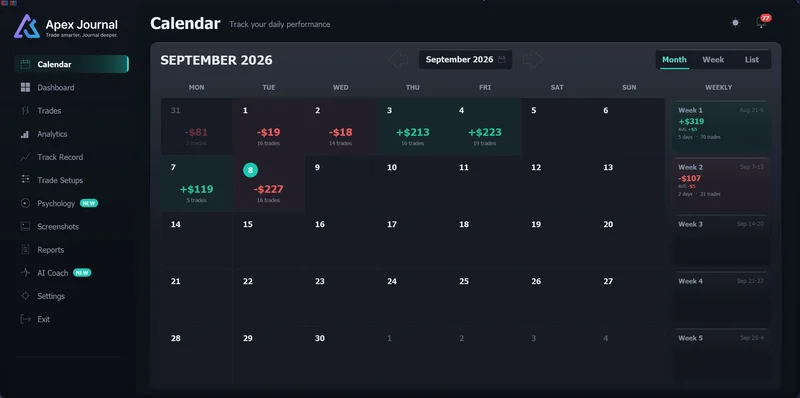
The month as a grid starting on Monday, each day showing its result and number of trades, with a weekly column down the right and the month's total along the bottom. Switch to Week for one week in more detail, or List for the month as a table you can sort. Press Month or Week again to jump back to today.
Click a day and a panel opens beside it: a score out of 100 drawn as a six-axis radar, the day's figures, a cumulative line trade by trade, the best and worst trade, and the symbol, session and time that carried it. View Details opens the Trades page filtered to that day. A day with only a handful of trades gets no score, by design.
Dashboard
A rolling view of how you are doing now. The range button switches between All Time, This Year, This Month and Last 30 Days. The top tiles — net result, trades, win rate, profit factor and expectancy — each carry the figure for the window of the same length before it; All Time has nothing before it, so it shows no comparison. Below are the performance summary, the balance and profit chart with deposits and withdrawals marked, the R distribution and the split by session, where each slice is sized by the number of trades.
For a fixed month or week rather than a rolling window, use Reports.
Trades
Every closed trade in a table, with columns for the date, symbol and direction, entry and exit, the setup, R, P&L, the result and how long it lasted. Narrow the list with the date button and the chips for symbol, direction, session, result, setup and hold time, or type in the search box. Export writes the filtered list to a CSV file and tells you where it was saved. Click any row to open its detail.
Trade Detail
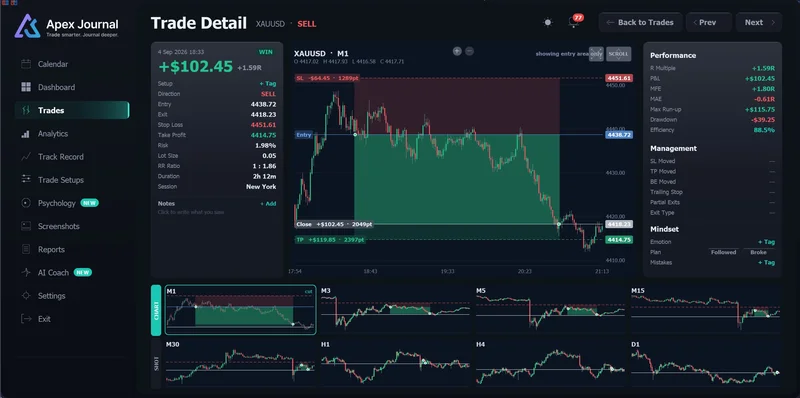
The chart plots a single trade over actual candles, picking the timeframe from how long the trade lasted. Prev and Next step through the filtered list. The page shows:
- Risk, lot size and the reward-to-risk of the levels the trade had.
- R multiple, the best and worst excursion (MFE and MAE), and efficiency — how much of the run your exit kept. These come from price history, so they work for old trades too.
- Each partial close and how the last part left — closed by hand, from the phone app, by an EA, through a stop-out and so on.
- The SL/TP history, break-even and trailing — recorded only for trades ApeX Trade Manager was running for. Elsewhere the field shows a dash, because MetaTrader keeps no record of those changes.
- + Set, for a trade that had no stop or target on the server: type the level you had in mind, and it is labelled typed wherever it is used, so R statistics can include the trade without pretending the broker recorded it.
- The setup checklist with your answers, a Notes box, and Mindset: the emotion, Followed or Broke for the plan, and any mistakes.
Analytics
Four tabs about how you trade. All of them follow the range button in the header.
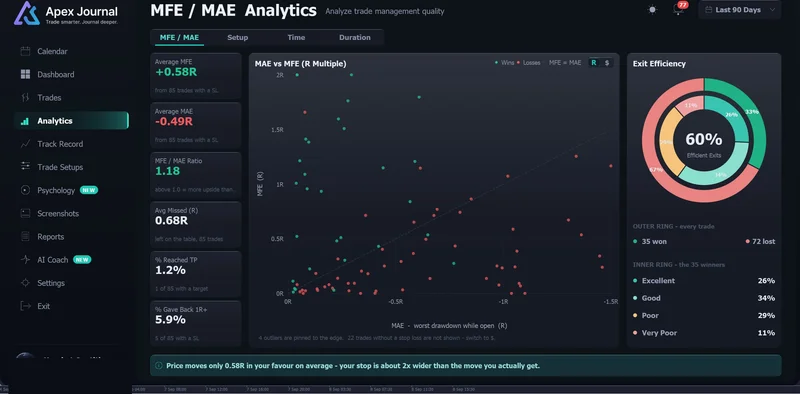
- MFE / MAE — every trade plotted by its best against its worst excursion, in money or R; tiles for the averages and how often a trade was a full R ahead before closing at a loss; and an Exit Efficiency donut that grades winners from Excellent to Very Poor.
- Setup — setups ranked by result per trade once they have ten trades or more, what a support tag changes about a base setup, and per checklist item how the average R differs when it was kept or missed.
- Time — a day-by-hour heatmap in your local time or GMT, sessions against weekdays, and a weekday summary.
- Duration — nine hold-time bands, each scored in the unit you pick (expectancy, net result, win rate or profit factor); the median hold of winners against losers; and how long you tend to stay after the best price. Click a band to see its trades.
MFE, MAE and exit efficiency explained →
Track Record
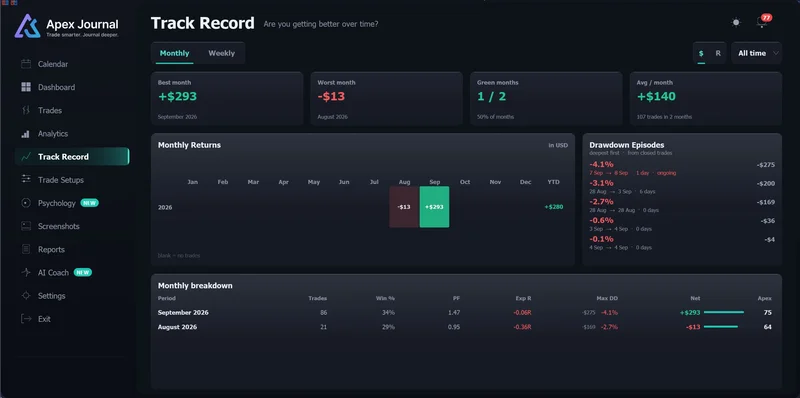
Finished periods side by side, Monthly or Weekly. The heatmap puts years down and months across: blank means no trading, a grey dash marks a period this unit cannot measure, and colour means it can. Tiles give the best and worst period and the share of green ones. Drawdown Episodes lists your deepest drawdowns, worst first, and flags any that contain a deposit or withdrawal. Click a period to open it in Reports.
Trade Setups
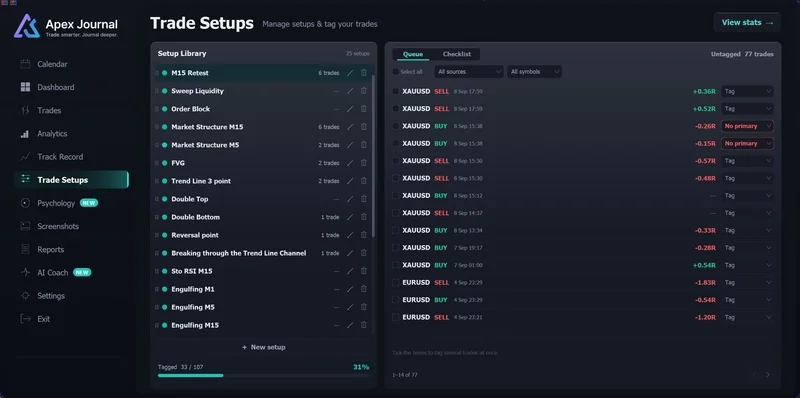
Your library of setups. + New setup creates one with any name you like; add checklist rules and mark the ones that are Required. When you edit a rule that already has answers, the Journal checks with you first: correcting a spelling slip keeps the history, while changing what the rule means starts a fresh rule so old answers are not rewritten.
The Queue on the right lists trades that have no setup yet. Tick several, choose a setup and press Save to tag them all at once. Each trade has one primary setup, which is what the statistics group on, plus any number of support tags.
Psychology
Emotion Score ranks the emotions you have tagged by average R; the starter list can be renamed, added to or trimmed. Top Mistakes compares trades carrying each flag — such as No SL, Oversized Risk, Revenge Trade or Cut Winner Early — with the rest. Plan vs Execution counts Followed Plan against Broke Rule, and the Review queue lets you log trades quickly with an emotion picker and Plan or Broke buttons.
Screenshots
Every chart picture attached to a trade, newest first and grouped by day, with filters for symbol and for win, loss and not filled. Clicking a picture opens a viewer; Open this trade takes you to its detail. Pictures are taken with the camera on the Trade Card, which needs ApeX Trade Manager — on its own, the Journal shows and organises them but does not take them. They are stored in their own folder, apart from MetaTrader's Screenshots folder.
Reports
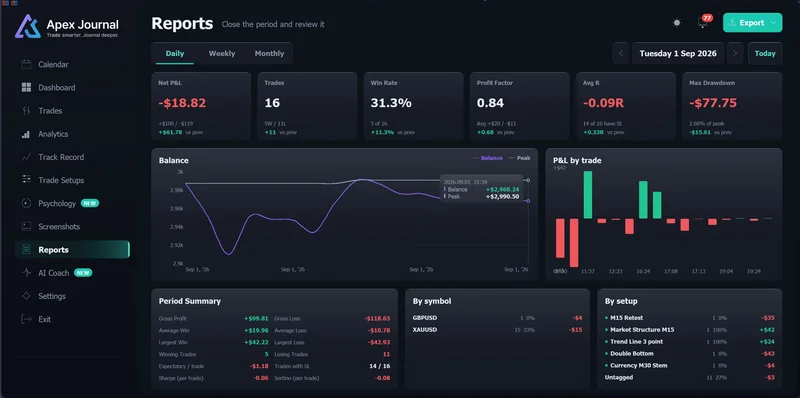
Fixed periods: Daily, Weekly or Monthly, with arrows to step through them and Today, This week or This month to come back. The tiles cover net result and trade count, win rate and average R, plus profit factor and the deepest drawdown, and each is set against the period right before it — this month against last month. Below are the balance for the period, results by day or by trade, a summary, and the split by symbol and by setup. Export saves the report as CSV for a spreadsheet or HTML to keep or send; exported files are always in English, and once saved the Journal tells you the location; File › Open Data Folder gets you there.
AI Coach
Optional, and off until you set it up. It uses your own account with an AI provider, who bills you directly.
- On the Settings page, choose a provider — Anthropic, OpenAI, Google Gemini, xAI, DeepSeek, or Ollama running on your own computer, which needs no key — and paste your API key.
- In MetaTrader open Tools › Options › Expert Advisors and add the provider's address to the WebRequest list. Settings shows the exact address to paste.
- Install the free ApeXAiBridge service in MQL5\Services and start it from Navigator › Services. It carries the request, because an indicator cannot.
- Switch AI on and press Test connection.
Analyse reads the period you selected and ranks what is costing you most. Ask the coach takes free questions about your own closed trades — it does not forecast markets or call entries. If ApeX Trade Manager is running too, the coach can compare against the plan you made before the trade. Every question, answer and data block is kept in Coach history, and a daily request cap in Settings keeps the cost in check. View full text shows exactly what will be sent; your balance, login, broker name and images are never included.
Settings
The language of the Journal window, English or Thai, and everything for the AI Coach — which provider and model, your API key, the switch that turns it on, Test connection and a cap on requests per day. Each provider remembers its own key, so moving between them never means pasting it again.
Trade Card (with ApeX Trade Manager MT5)
This card sits at the right-hand side of the chart and opens from ☰ › Trade Setup on the Journal bar. It lists all plans on the account, whether pending, already open or still a draft on the chart, and can pop up by itself when a new one appears, after a delay you set. Pick a setup and tick its checklist before you enter, write your reasoning in the comment and save it with Done, and use the camera to attach the chart to the trade; the card steps out of the way first so the shot is clean. Tick several rows to give them the same setup in one save.
This card only works with ApeX Trade Manager: what it shows is the Trade Manager's plan, which exists before any order does. Without the Trade Manager, the Trade Setup row does not appear in the ☰ menu.
Questions
Why does a trade show no R?
R is measured against the stop loss, so a trade that never had one has no R and is left out of R statistics rather than counted as zero. Open the trade in Trade Detail and use + Set to enter the stop you had in mind; it is labelled typed from then on.
Why are BE Moved and Trailing Stop empty for my trades?
MetaTrader 5 keeps no log of edits to the stop loss or take profit, which means those fields can only be filled for trades that ApeX Trade Manager was running for at the time. For any other trade they show a dash instead of a guess.
Where do exported reports go?
Into the MetaTrader 5 data folder. The Journal shows the exact path after each export; open the folder with File › Open Data Folder. Programs from the MQL5 Market are not allowed to open folders for you, so the path is shown instead.
Why does the Trade Detail chart say loading?
MetaTrader is still downloading the price history for that symbol and timeframe. The chart fills in once the candles arrive; it is not an error.