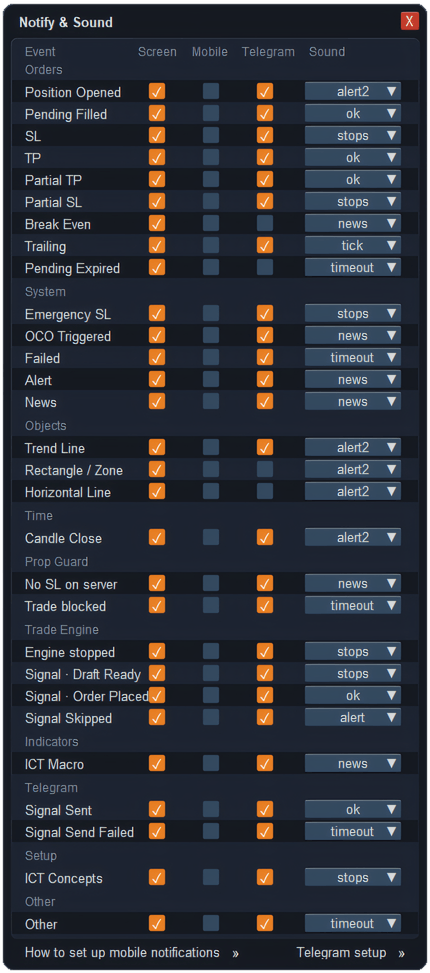
ApeX Trading Console can tell you about each event — a position opened, a stop hit, break-even moved, a price alert, news coming — in four ways: a card on the chart, a push to your phone’s MetaTrader app, a Telegram message, and a sound. In Notify & Sound you switch each channel on or off per event and pick the sound, so a stop-loss hit can reach your phone while a trailing step only makes a small tick.
Opening it
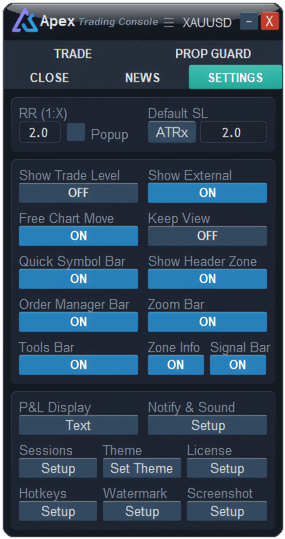
On the panel's Settings tab, press Setup under Notify & Sound.
The four channels
| Column | What you get |
|---|---|
| Screen | A card on the chart with the event, symbol, zone and details. It fades on its own. |
| Mobile | Pushed to your phone’s MetaTrader app. Needs a one-time setup, below. |
| Telegram | A message to your Telegram chat, once Telegram is set up. |
| Sound | One of MetaTrader's built-in sounds, or none. Choosing one plays it, so you can tell them apart. |
If the console runs on several charts, the sound and the phone notification go out once, not once per chart.
Which events can you be told about?
- Orders — position opened, pending filled, stop loss, take profit, partial take profit and stop loss, break-even, trailing, pending expired.
- System — emergency stop, OCO triggered, anything that failed, price alerts and news.
- Objects — price touching a trend line, rectangle or horizontal line you drew.
- Time — a candle closing.
- Prop Guard — a position with no stop at the broker, and a trade that was blocked.
- Trade Engine — messages from the console's automatic trading engine.
- Indicators · Setup — events from ApeX indicators on the same chart, if you use them.
- Telegram — a signal sent to your channel, or one that could not be sent.
How do you get alerts on your phone?
- Install the MetaTrader 5 app on your phone and find your MetaQuotes ID in the app’s settings.
- In MetaTrader on your computer go to Tools › Options, switch to the Notifications tab, turn on Enable Push Notifications and paste the ID there.
- Tick Mobile for the events you want on your phone.
The same steps are in the window itself, under How to set up mobile notifications.
What it will not do
- Nothing is sent while MetaTrader is closed. The console sends every alert, so the terminal has to be running — on your computer or a VPS.
- MetaTrader limits phone pushes. No more than two a second and ten a minute. If many events fire together, switch Mobile on only for the ones that matter.
- A sound needs someone to hear it. For anything you must not miss when away from the desk, use Mobile or Telegram as well.
Questions
How do I get MT5 notifications on my phone?
Copy the MetaQuotes ID from the MetaTrader app on your phone, paste it into Tools › Options › Notifications on your computer with push notifications enabled, then tick Mobile for the events you want in Notify & Sound.
Can I have a different sound for each event?
Yes. Each row has its own sound, and choosing one plays it so you can pick sounds you can tell apart.
Why did a news alert not arrive?
News alerts need two things switched on: the News row here, and the currencies and impact levels on the News tab. See Economic calendar.
Checked against ApeX Trading Console 6.593.