In ApeX Trading Console, a trade manager for MetaTrader 5, press the orange bell on the Tools bar and click the chart where you want a price alert. The line stays at the right edge of the chart, where you can drag it to a new price or delete it with its ✕. When the bid crosses the line, from either side, you get an alert on screen, on your phone and on Telegram — once, or every time it crosses, and up to ten times in a row, ten seconds apart. Up to 30 lines, on any symbols, are watched together and kept after a restart.
Where are the buttons?
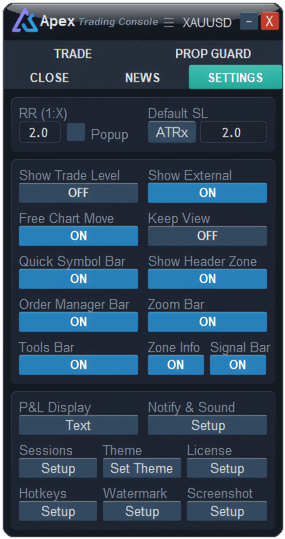
On the Tools bar, a small floating bar on the chart. If you do not see it, go to the panel’s Settings tab and turn Tools Bar on. Two of its buttons are for price alerts:
- 🔔 — the orange bell adds a new line.
- ☰A — opens the list of all your alert lines.

How do you add a price alert line?
- Press 🔔 on the Tools bar. A dotted orange line follows the mouse, with its price next to it.
- Click on the chart at the price you want. The line is placed and starts watching straight away.
- Changed your mind? Press 🔔 again, or Esc, before you click.
A new line warns you once, with one alert. You can change both in the Price Alerts window, below. If you add lines often, give it a key: Alert Line is in the hotkey list, with no key set until you choose one.
How do you move or delete a line?
A placed line is kept short and sits at the right edge of the chart, near the latest price, so it does not cover your candles. It has three parts:
- The line and its dot — drag either one up or down to change the price. The line stretches across the chart while you drag, then shrinks back when you let go. The dot is shown only while the line is switched on.
- ✕ — the round button at the end deletes the line.
- The price — written under the line.
The colour of the line is worked out from your chart background, so it stays visible on a dark or a light chart. Each chart shows only the lines for its own symbol; the others are in the list.
What is in the Price Alerts window?
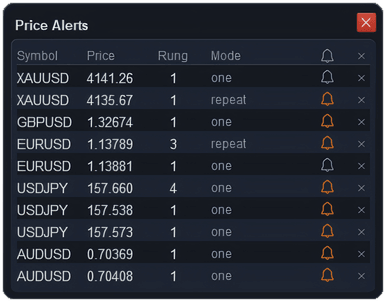
Press ☰A. Every alert line is listed here, whatever symbol it is on, one row per line.
| Column | What it does |
|---|---|
| Symbol · Price | Which market the line is on, and its price. |
| Rung | How many times one cross makes it ring, from 1 to 10, with ten seconds between rings. Pick the value by clicking it. |
| Mode | one — warns on the first cross, then switches itself off. repeat — warns every time price crosses. Click to switch. |
| 🔔 | Orange means the line is on, grey means it is off. Click to switch. This is also how you turn a line back on after it has gone off. |
| ✕ | Deletes that line. |
The 🔔 and ✕ in the header act on every line at once. The bell switches them all off if any is on, or all on if none is. The ✕ deletes them all, after asking you first.
When does the alert go off?
When the bid moves from one side of the line to the other — up through it or down through it. When you place a line, the console notes which side price is on and waits; it does not go off just because price is already past the line. Every line in the list is checked twice a second, including lines on symbols you do not have open. A symbol missing from Market Watch is added so its price can be read.
For example, a line on XAUUSD at 2,400.00 with Rung 3 and Mode one: when gold crosses 2,400.00 you get three alerts ten seconds apart, each saying which way price crossed and where it is now, and the line switches itself off. Set Mode to repeat and it stays on and does the same at every cross.
Where does the alert go?
Price alerts are the Alert row, in the System group of Notify & Sound. To begin with it shows a card on screen, plays the alert sound, and goes to your phone and to Telegram. Your phone needs MetaTrader push notifications set up once, and Telegram needs its own setup. Switch any of them off there.
What it will not do
- It does not trade. A line only warns you. To have an order waiting at a price, use a pending zone — see your first trade.
- It goes by the bid. The ask is higher by the spread, so on a wide-spread symbol a buyer may reach your price a little before the alert.
- Nothing is sent while MetaTrader is closed. The console does the watching, so the terminal has to be running — on your computer or a VPS.
- 30 lines at most. Delete lines you no longer need to make room.
Questions
How do I get an MT5 price alert on my phone?
Set up MetaTrader push notifications once with your MetaQuotes ID, then keep Mobile ticked on the Alert row in Notify & Sound. It is ticked to begin with. The steps are in Notify & Sound.
Does an alert work when the chart shows another symbol?
Yes. Every line in the list is watched, whatever the chart is showing. You see a line on the chart only when the chart is on its symbol.
Why did my line not go off as soon as I placed it?
A line waits for price to cross it. Placing it above or below the current price only sets the starting side; the alert comes when price moves through the line.
A line went grey. How do I use it again?
A line in Mode one switches itself off after it goes off. Open ☰A and click its grey bell to turn it back on, or set Mode to repeat so it never switches off.
Checked against ApeX Trading Console 6.593.