ApeX Trading Console, an MT5 trade manager, puts every open position and pending order on the account in one table, on any symbol, from a small bar on the chart. Press ☰O for the Order Manager: filter by symbol, buy or sell, pending type, or profit and loss in money or percent, then close one row or the whole filtered group in a single press. Press ☰H for Order History: closed trades by period, symbol, weekday, market session, result and whether they had a stop, with net profit, win rate and profit factor totalled at the bottom.
Opening them
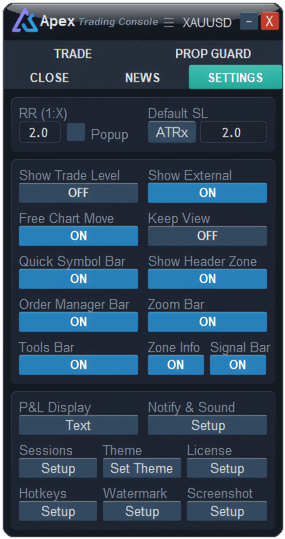
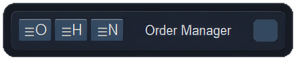
Turn Order Manager Bar on in the panel’s Settings tab. A small bar titled Order Manager appears on the chart with three buttons:
- ☰O — Order Manager: what is open and waiting now.
- ☰H — Order History: what has been closed.
- ☰N — the list of alerts you have received (see Notify & Sound).
Each button opens its window just under the bar; press it again to close. Drag the bar by its right end to put it anywhere. The windows stay open when you switch timeframe.
What does the Order Manager show?
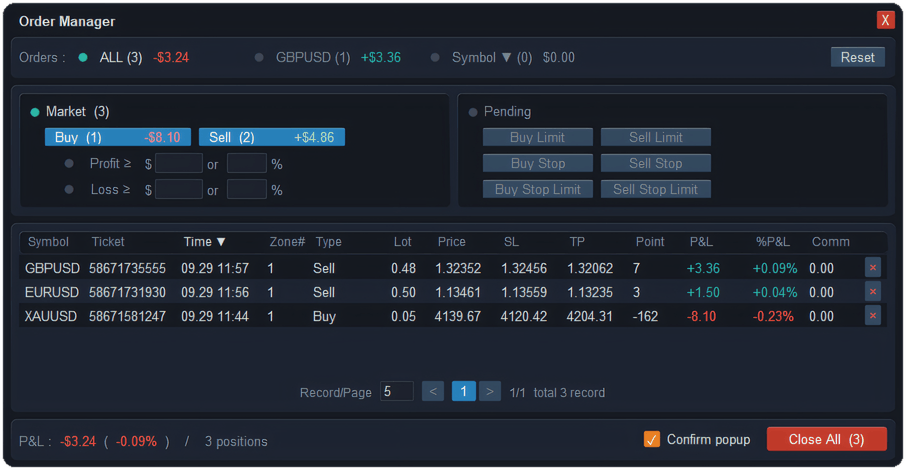
One row per trade, updated live, with these columns: Symbol, Ticket, Time, Zone# (the trade box it belongs to, if any), Type, Lot, Price, SL, TP, Point (distance from entry, positive when it is going your way), P&L, %P&L (of balance) and Comm. Click a heading and the rows are ordered by that column; a second click flips the order. Newest comes first to begin with. Choose how many rows fit on a page with Record/Page.
How do you choose which trades to see?
Three layers, top to bottom. Each shows its count and running P&L, so you see the size of a group before you touch it.
- Orders : ALL symbols, the symbol of this chart (the starting choice), or a single symbol chosen from a drop-down.
- Market or Pending. Market lists open positions; Pending lists waiting orders, including the virtual pending orders the console holds itself.
- Narrow it down. For Market: Buy and Sell, plus Profit ≥ and Loss ≥, each as an amount or a percent of balance (fill in either; empty means not used). For Pending: Buy/Sell Limit, Stop and Stop Limit. Press a button to leave that kind out.
Reset puts every filter back.
How do you close trades from the table?
- One trade: press the ✕ at the end of a row: an open position is closed, a pending order is deleted.
- The whole filtered group: the red button at the bottom right reads Close All (n) for positions or Cancel All (n) for pending orders, where n is how many rows the filters let through right now — all pages, not only the one on screen.
With Confirm popup ticked, which it is to begin with, both ask first and show what is about to go, with its P&L. Untick it only if you are sure. For closing by rule instead of by hand — at a profit target, say — see Closing trades.
What does Order History show?
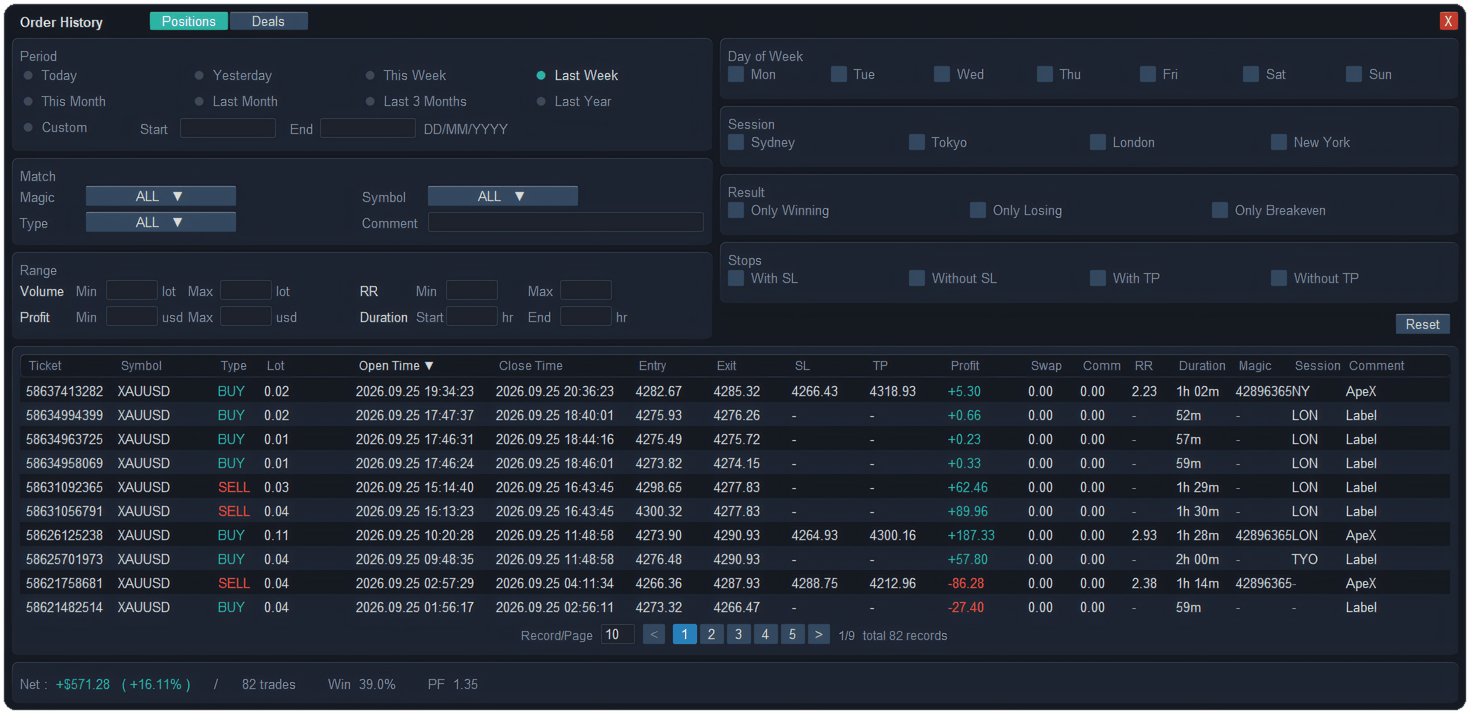
Press ☰H. Each closed trade gets a row carrying its ticket and symbol, side and lots, when it opened and when it closed, entry and exit price, the stop and target it opened with, profit, swap and commission, the planned RR, how long it lasted, the magic number, the session and the comment. It starts on Today, and any heading sorts the table.
Two views, switched at the top of the window:
- Positions — one row per trade, with partial closes added together. A trade that is still partly open shows closed/total lots, for example 0.70/1.00.
- Deals — one row for every close, so each partial exit shows on its own.
The bottom line totals whatever the filters show: Net profit (with its percent of balance), number of trades, Win % and PF (profit factor: money won ÷ money lost).
How do you filter the history?
| Box | What you can choose |
|---|---|
| Period | Today, Yesterday, This Week, Last Week, This Month, Last Month, Last 3 Months, Last Year, or Custom dates (DD/MM/YYYY). |
| Match | Magic number, Symbol and Type (Buy or Sell) from lists; Comment keeps rows whose comment contains what you type. |
| Range | Minimum and maximum for Volume (lots), Profit, RR and Duration (hours). Profit counts from zero up; for losing trades use Result. |
| Day of Week | Mon to Sun, by the day the trade opened. |
| Session | Tokyo, London, New York or Sydney, going by when the trade opened. Where two overlap, the trade counts as London first, then New York, then Tokyo. |
| Result | Winners (Only Winning), losers (Only Losing), or trades stopped out on the profit side of entry after the stop was moved (Only Breakeven). |
| Stops | Whether a stop loss was set (With SL, Without SL), and the same for take profit (With TP, Without TP). |
Tick nothing in a box and that box does not filter. Reset clears them all. The Without SL filter is a quick way to find the trades that went out unprotected — it also catches trades that used a virtual stop, which the broker never saw.
SL, TP and RR are the values the trade opened with, so moving the stop to break-even or trailing it later does not rewrite them.
What they will not do
- History does not see virtual stops. A virtual SL or TP never reaches the broker, and neither does a stop added after the trade opened, so those trades show "-" for SL, TP and RR.
- Comments can change. Some brokers rewrite a trade’s comment after a partial close, so the Comment filter may miss it.
- Not a journal. Order History reads what the broker keeps. Notes, screenshots and statistics over time belong to ApeX Journal, which is sold separately.
- A long period takes a moment. Last Year on a busy account has a lot to read each time you change a filter.
Questions
Does the Order Manager show trades from other symbols and other EAs?
Yes. Choose ALL under Orders and it lists every position and pending order on the account, whoever opened it. Close All then acts on all of them that pass the filters, so check the count first.
How do I close only the losing trades on one symbol?
Pick the symbol under Orders, stay on Market, turn on Loss ≥ and enter 0. The red button now counts only the losing trades on that symbol.
Why does a trade show 0.70/1.00 in Order History?
It has been closed in parts and is still partly open: 0.70 of the 1.00 lot has gone. Switch to Deals to see each part on its own row.
Checked against ApeX Trading Console 6.593.