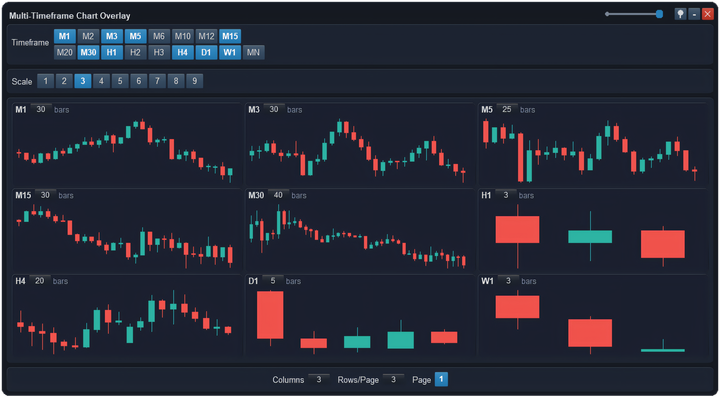
ApeX Trading Console, an MT5 trade manager, can show the candles of the chart’s symbol on up to 12 timeframes at once, side by side in one window, from M1 to monthly. Press ☰M on the Tools bar, tick the timeframes you want, set how many columns and rows, and choose how many bars each frame shows. The candles update every second in your chart’s own colours. Double-click a timeframe’s name to switch the chart to it.
Opening it
Press ☰M on the Tools bar; the window is called Multi-Timeframe Chart Overlay. If the bar is not on your chart, turn Tools Bar on in the panel’s Settings tab. Press ☰M again or X to close. The window, its place on screen and every setting in it survive a timeframe change.

How do you choose the timeframes?
The Timeframe box has 17 buttons: M1, M2, M3, M5, M6, M10, M12, M15, M20, M30, H1, H2, H3, H4, D1, W1 and MN. Click one to add it; click again to remove it. The frames appear in that same order. M1, M5, M15 and H1 are chosen to begin with.
How do you set the size and layout?
- Scale 1–9 sets the size of the whole window, from small to nearly the full chart. The frames share that space.
- Columns (1–4) and Rows/Page (1–3) set the grid, so one page holds up to 12 frames. Click the number to step through the values.
- More timeframes than fit? Page buttons appear to flip through them.
Columns 1 and Rows 1 gives you one large frame — handy for keeping a higher timeframe in the corner of a lower one.
How many bars does each frame show?
50 to begin with. Click the number next to the timeframe’s name at the top of a frame and pick 1, 3, 5, 10, 20, 25, 30, 40, 50, 60, 75 or 100. Each timeframe remembers its own number, so M1 can show 100 while H4 shows 20.
Candles use your chart’s colours and update every second. The newest candle is the one still forming, with a little space after it. A frame that says Loading… is waiting for MetaTrader to download that timeframe’s history.
How do you jump to one of the timeframes?
Double-click the timeframe’s name — "M15", say — at the top of its frame. The chart switches to that timeframe and the window closes, so you are straight into the chart. Clicking elsewhere in a frame does nothing, so you can look closely without changing timeframe by accident.
See-through, shrink and pin
| In the title bar | What it does |
|---|---|
| Slider | How solid the window is, from 10% to fully solid, so the chart can show through. |
| − | Hides the Timeframe, Scale and bottom rows. The window keeps its size, so the frames grow. □ brings them back. |
| Pin (left of −) | Pins the window in place and lets the mouse pass through it: you can drag and zoom the chart underneath, and double-click lines you drew under it. While pinned, the pin turns blue, the window sits behind the candles and only the pin button works; press it again to unpin. |
What it will not do
- Candles only. No indicators, drawings, price or time scale, and no scrolling back inside a frame. It is for a quick look; open the timeframe itself to study it.
- One symbol. Every frame shows the symbol of the chart the console is on.
- 100 bars at most per frame. Only the preset numbers can be chosen.
Questions
How do I see several timeframes at once in MT5?
MetaTrader itself needs a separate chart window per timeframe. With the console, press ☰M, tick the timeframes, and they sit side by side in one window on the chart you already have open.
The window is empty. What happened?
No timeframe is ticked — the window says so in the middle. Pick one in the Timeframe box. If you shrank the window with −, press □ first to see the box again.
I can’t click anything in the window.
It is pinned — the pin button in the title bar is blue. Press it to unpin.
Checked against ApeX Trading Console 6.593.